

 Platform
 W&B Models
 W&B Weave
 W&B Inference
 W&B Training
 Release Notes
W&B Inference
W&B Inference provides access to leading open-source foundation models via W&B Weave and an OpenAI-compliant API. With W&B Inference, you can:- Develop AI applications and agents without signing up for a hosting provider or self-hosting a model.
- Try the supported models in the W&B Weave Playground.
This guide provides the following information:
Prerequisites
The following prerequisites are required to access the W&B Inference service via the API or the W&B Weave UI.- A W&B account. Sign up here.
- A W&B API key. Get your API key at https://wandb.ai/authorize.
- A W&B project.
- If you are using the Inference service via Python, see Additional prerequisites for using the API via Python.
Additional prerequisites for using the API via Python
To use the Inference API via Python, first complete the general prerequisites. Then, install theopenai and weave libraries in your local environment:
The
weave library is only required if you’ll be using Weave to trace your LLM applications. For information on getting started with Weave, see the Weave Quickstart.For usage examples demonstrating how to use the W&B Inference service with Weave, see the API usage examples.API specification
The following section provides API specification information and API usage examples.Endpoint
The Inference service can be accessed via the following endpoint:Available methods
The Inference service supports the following API methods:Chat completions
The primary API method available is/chat/completions, which supports OpenAI-compatible request formats for sending messages to a supported model and receiving a completion. For usage examples demonstrating how to use the W&B Inference service with Weave, see the API usage examples.
To create a chat completion, you will need:
- The Inference service base URL
https://api.inference.wandb.ai/v1 - Your W&B API key
<your-api-key> - Your W&B entity and project names
<your-team>/<your-project> - The ID for the model you want to use, one of:
meta-llama/Llama-3.1-8B-Instructdeepseek-ai/DeepSeek-V3-0324meta-llama/Llama-3.3-70B-Instructdeepseek-ai/DeepSeek-R1-0528meta-llama/Llama-4-Scout-17B-16E-Instructmicrosoft/Phi-4-mini-instruct
- Bash
- Python
List supported models
Use the API to query all currently available models and their IDs. This is useful for selecting models dynamically or inspecting what’s available in your environment.- Bash
- Python
Usage examples
This section provides several examples demonstrating how to use W&B Inference with Weave:- Basic example: Trace Llama 3.1 8B with Weave
- Advanced example: Use Weave Evaluations and Leaderboards with the inference service
Basic example: Trace Llama 3.1 8B with Weave
The following Python code sample shows how to send a prompt to the Llama 3.1 8B model using the W&B Inference API and trace the call in Weave. Tracing lets you capture the full input/output of the LLM call, monitor performance, and analyze results in the Weave UI. In this example:- You define a
@weave.op()-decorated function,run_chat, which makes a chat completion request using the OpenAI-compatible client. - Your traces are recorded and associated with your W&B entity and project
project="<your-team>/<your-project> - The function is automatically traced by Weave, so its inputs, outputs, latency, and metadata (like model ID) are logged.
- The result is printed in the terminal, and the trace appears in your Traces tab at https://wandb.ai under the specified project.
https://wandb.ai/<your-team>/<your-project>/r/call/01977f8f-839d-7dda-b0c2-27292ef0e04g), or:
- Navigate to https://wandb.ai.
- Select the Traces tab to view your Weave traces.
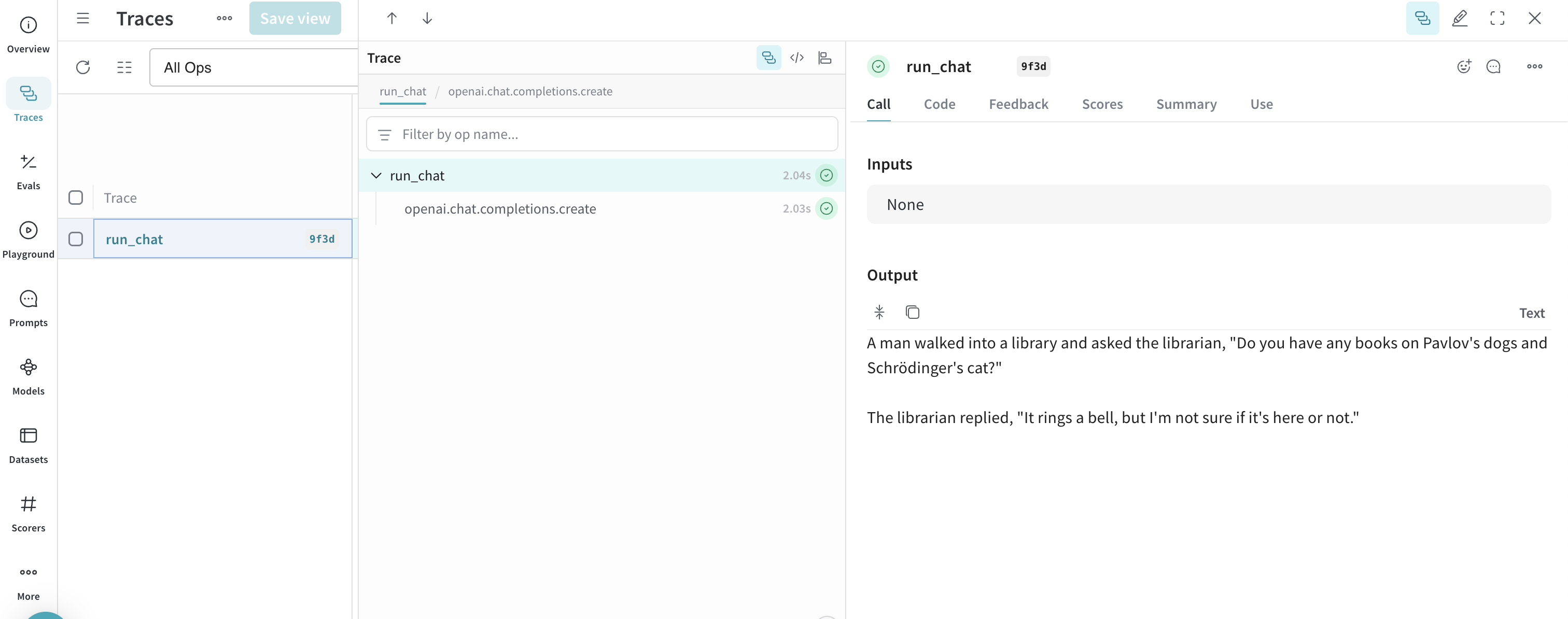
Advanced example: Use Weave Evaluations and Leaderboards with the inference service
In addition to using Weave with the Inference service to trace model calls, you can also evaluate performance, and publish a leaderboard. The following Python code sample compares two models on a simple question–answer dataset. To use this example, you must complete the general prerequisites and Additional prerequisites for using the API via Python.- Navigate to the Traces tab to view your traces
- Navigate to the Evals tab to view your model evaluations
- Navigate to the Leaders tab to view the generated leaderboard
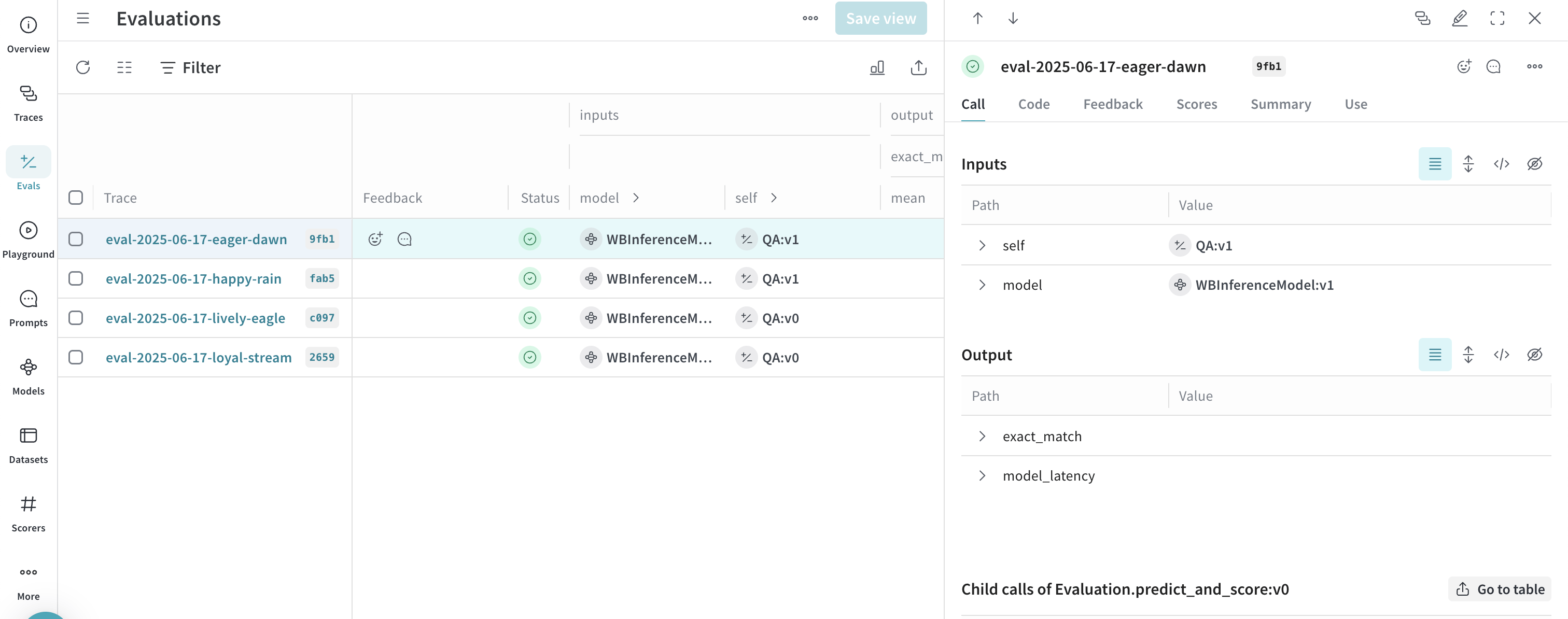
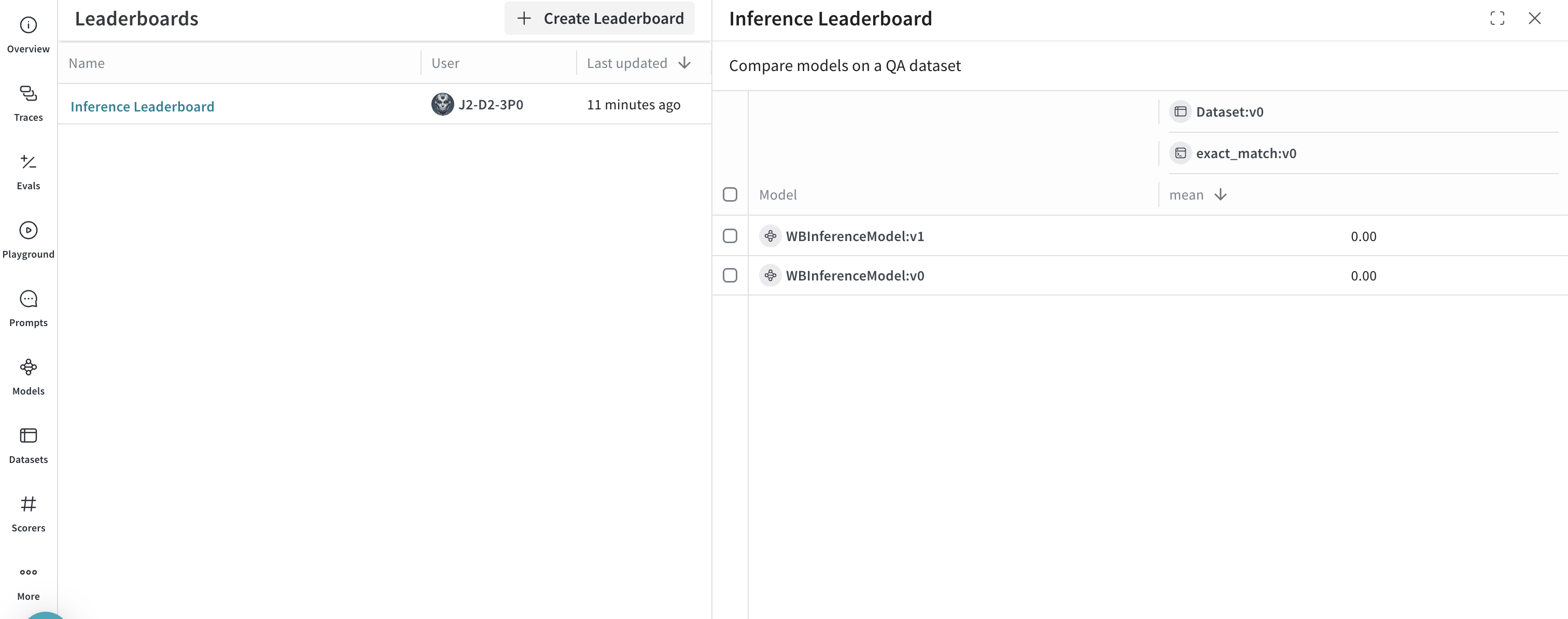
UI
The following section describes how to use the Inference service from the W&B UI. Before you can access the Inference service via the UI, complete the prerequisites.Access the Inference service
You can access the Inference service via the Weave UI from two different locations:Direct link
Navigate to https://wandb.ai/inference.From the Inference tab
- Navigate to your W&B account at https://wandb.ai/.
- From the left sidebar, select Inference. A page with available models and model information displays.
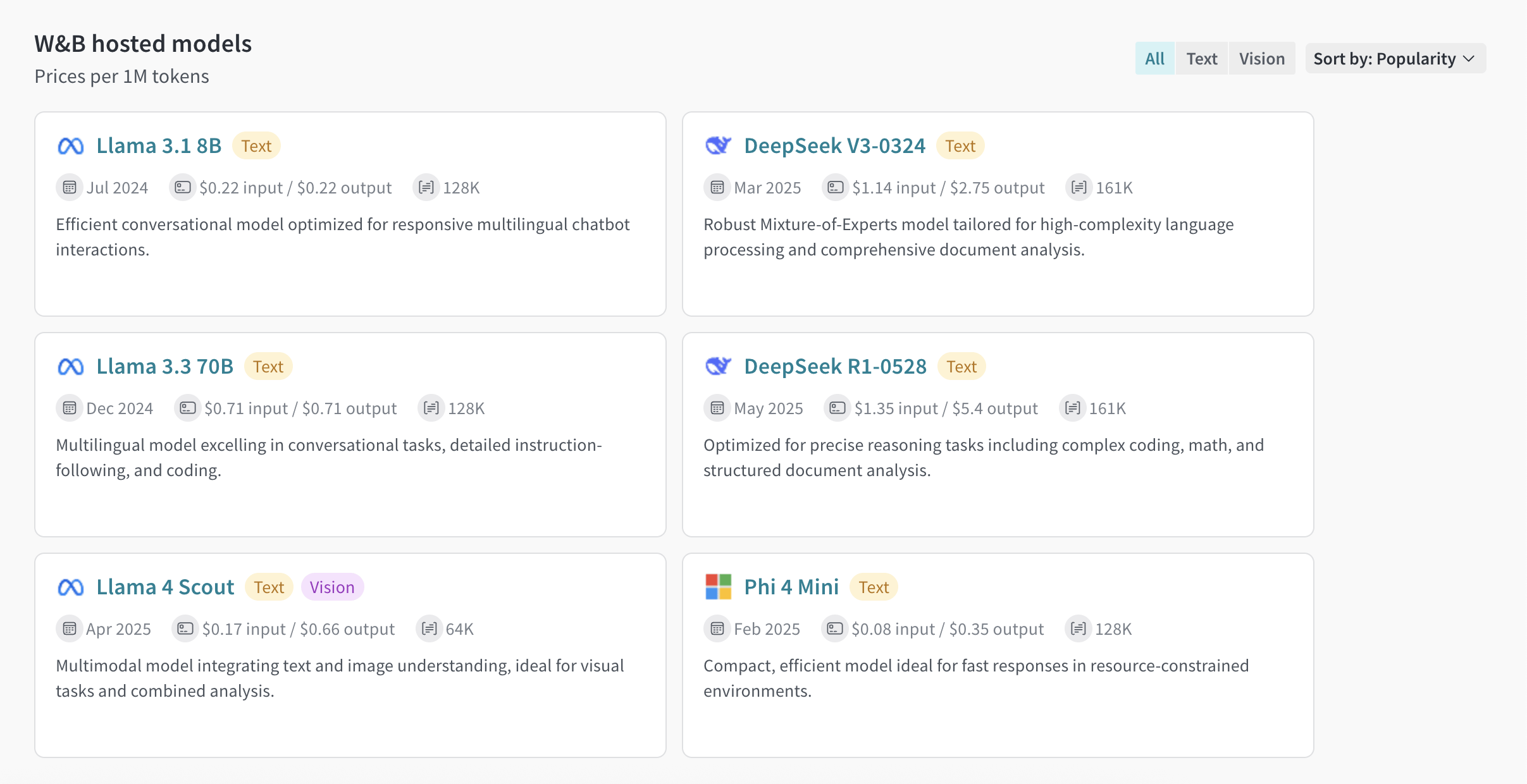
From the Playground tab
- From the left sidebar, select Playground. The Playground chat UI displays.
- From the LLM dropdown list, mouseover W&B Inference. A dropdown with available W&B Inference models displays to the right.
- From the W&B Inference models dropdown, you can:
- Click the name of any available model to try it in the Playground.
- Compare one or more models in the Playground
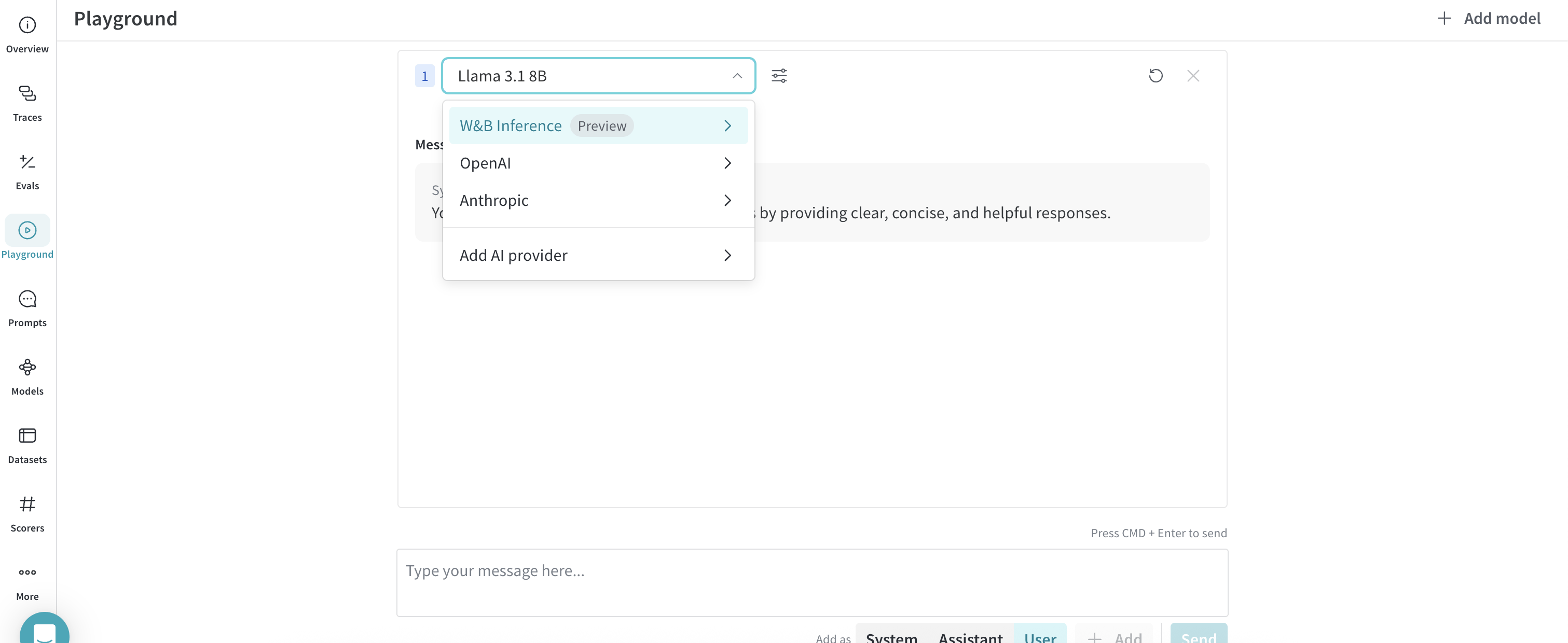
Try a model in the Playground
Once you’ve selected a model using one of the access options, you can try the model in Playground. The following actions are available:- Customize model settings and parameters
- Add, retry, edit, and delete messages
- Save and reuse a model with custom settings
- Compare multiple models
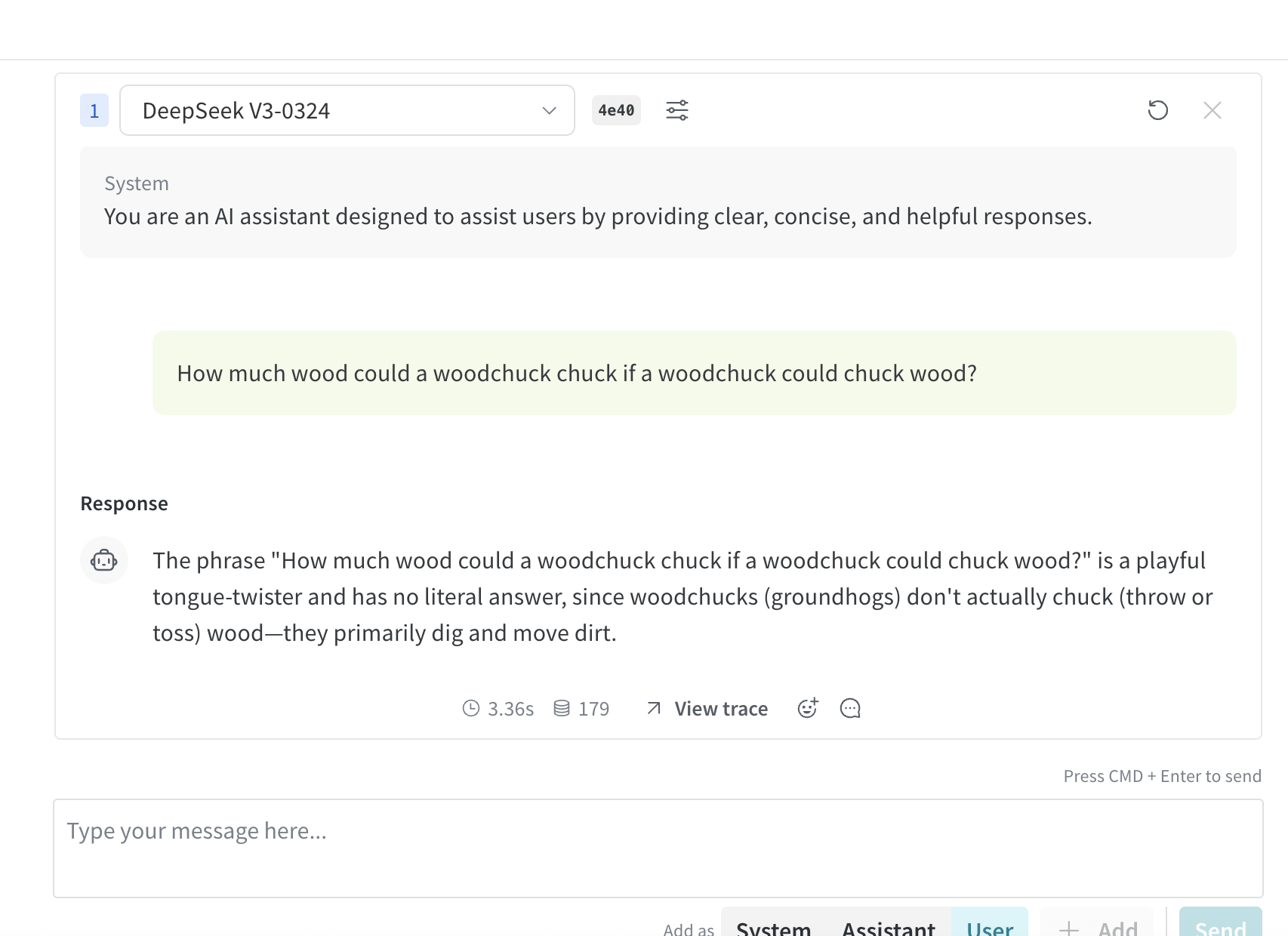
Compare multiple models
You can compare multiple Inference models in the Playground. The Compare view can be accessed from two different locations:Access the Compare view from the Inference tab
- From the left sidebar, select Inference. A page with available models and model information displays.
- To select models for comparison, click anywhere on a model card (except for the model name). The border of the model card is highlighted in blue to indicate the selection.
- Repeat step 2 for each model you want to compare.
- In any of the selected cards, click the Compare N models in the Playground button (
Nis the number of models you are comparing. For example, when 3 models are selected, the button displays as Compare 3 models in the Playground). The comparison view opens.
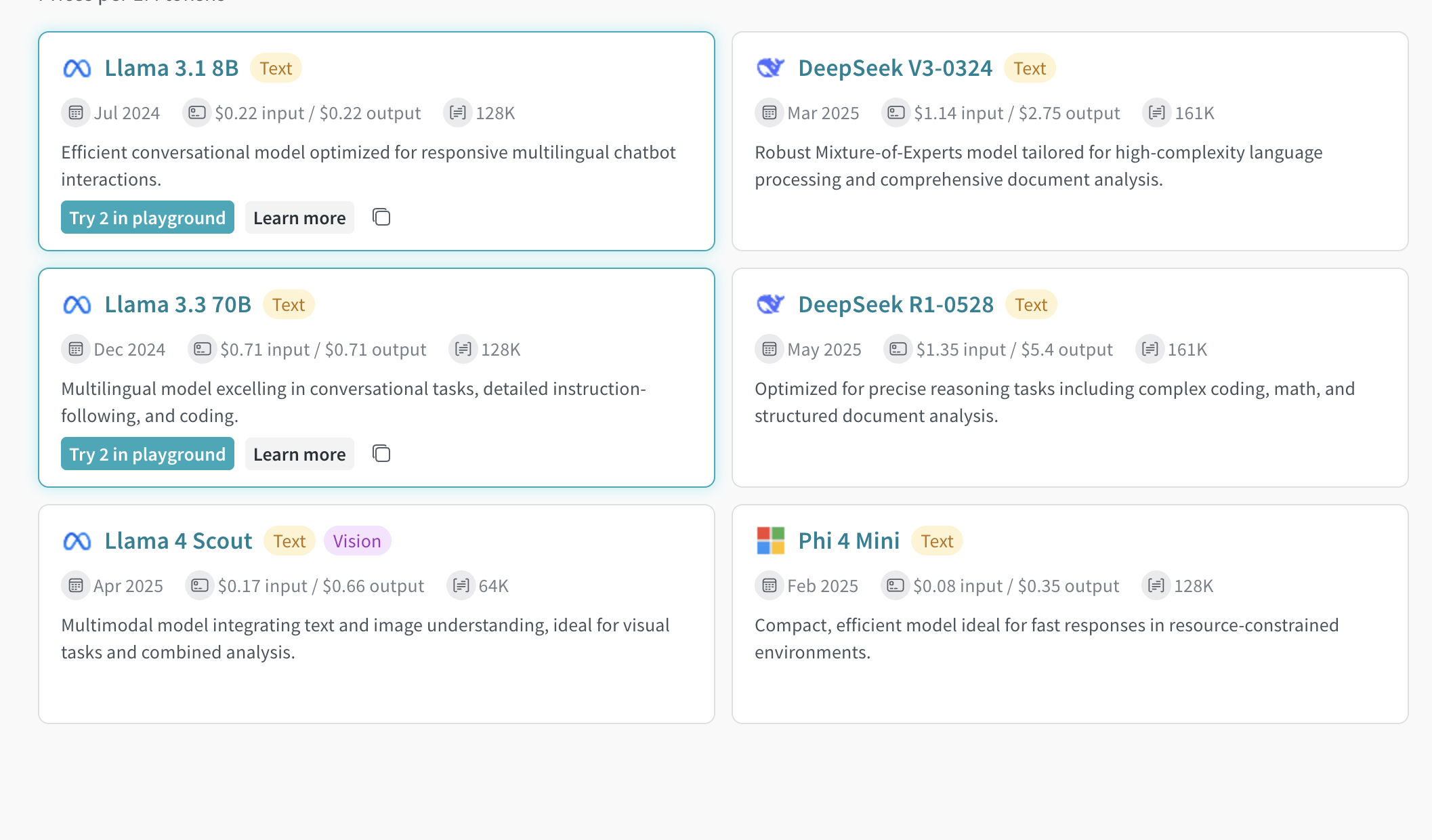
Access the Compare view from the Playground tab
- From the left sidebar, select Playground. The Playground chat UI displays.
- From the LLM dropdown list, mouseover W&B Inference. A dropdown with available W&B Inference models displays to the right.
- From the dropdown, select Compare. The Inference tab displays.
- To select models for comparison, click anywhere on a model card (except for the model name). The border of the model card is highlighted in blue to indicate the selection.
- Repeat step 4 for each model you want to compare.
- In any of the selected cards, click the Compare N models in the Playground button (
Nis the number of models you are comparing. For example, when 3 models are selected, the button displays as Compare 3 models in the Playground). The comparison view opens.
View billing and usage information
Organization admins can track current Inference credit balance, usage history, and upcoming billing (if applicable) directly from the W&B UI:- In the W&B UI, navigate to the W&B Billing page.
- In the bottom righthand corner, the Inference billing information card is displayed. From here, you can:
- Click the View usage button in the Inference billing information card to view your usage over time.
- If you’re on a paid plan, view your upcoming inference charges.
Usage information and limits
The following section describes important usage information and limits. Familiarize yourself with this information before using the service.Geographic restrictions
The Inference service is only accessible from supported geographic locations. For more information, see the Terms of Service.Concurrency limits
To ensure fair usage and stable performance, the W&B Inference API enforces rate limits at the user and project level. These limits help:- Prevent misuse and protect API stability
- Ensure access for all users
- Manage infrastructure load effectively
429 Concurrency limit reached for requests response. To resolve this error, reduce the number of concurrent requests.